
Mapples AI
Describe the app. Get real Expo code.
Three ways to build with AI: an assistant on the canvas, your own coding agent writing the code, and an MCP connector that brings your projects into Claude.
Build in web
Beta
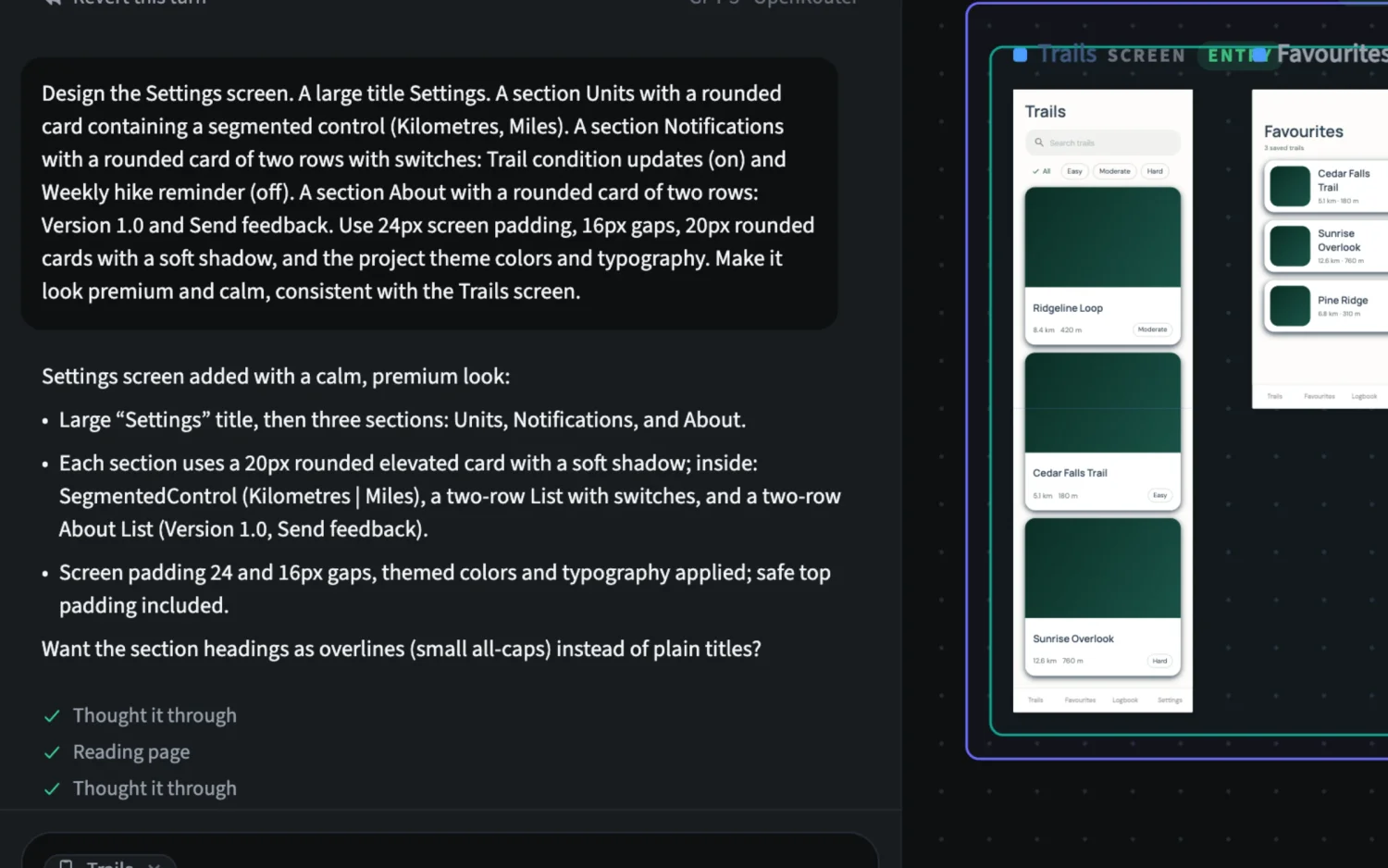
An assistant that builds on your canvas
Describe your app in the editor. The assistant proposes a style, writes a build plan and then builds it screen by screen, right where you design. Everything it makes is a normal screen you can keep editing by hand.
- Pick a style: directions generated from your brief, each in light and dark.
- Review the plan: decisions, navigation and build steps before anything is built.
- Build step by step, then chat to change any screen.
- Revert any turn with one click.
Build in agent
Let your own coding agent build it
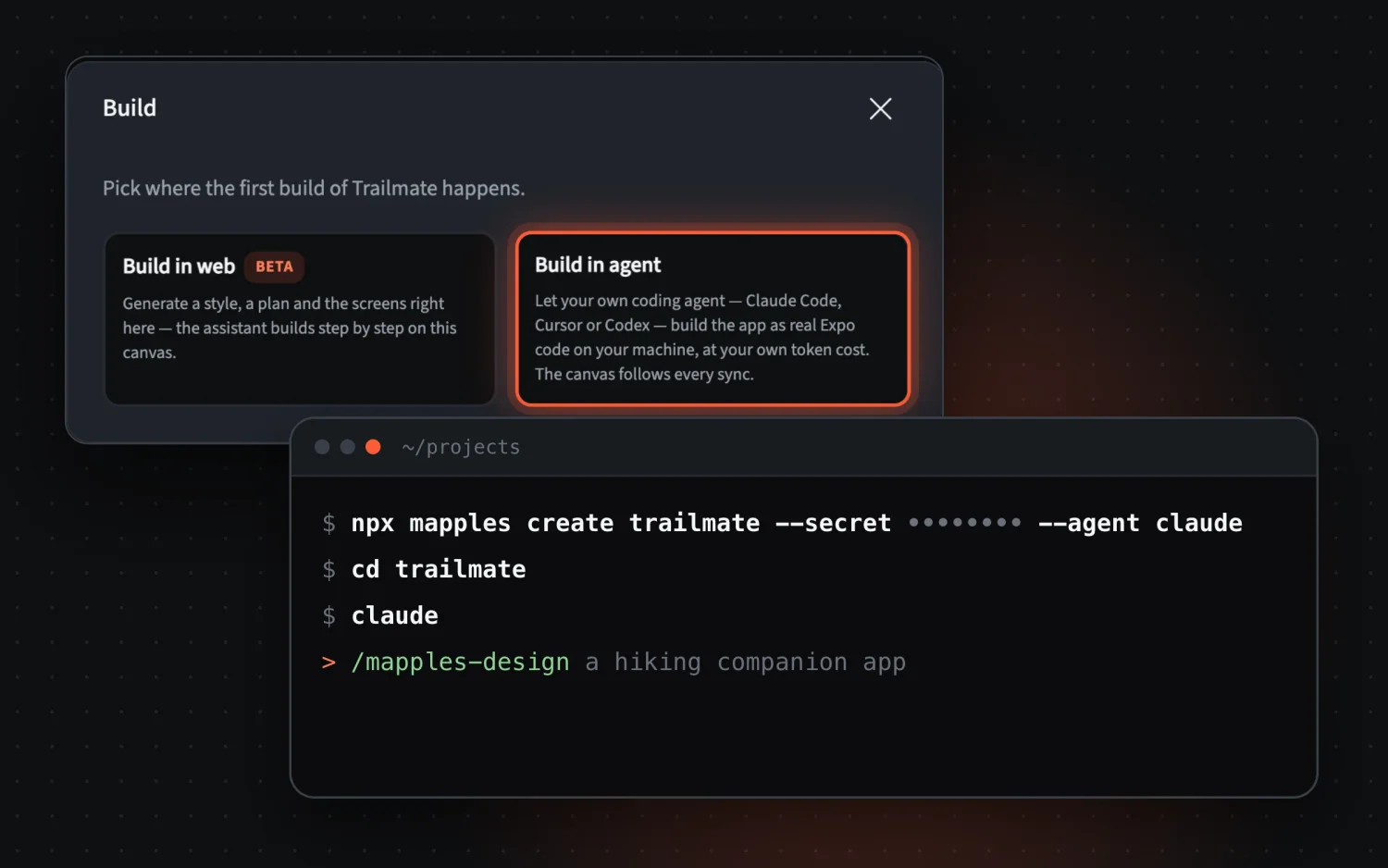
Claude Code, Cursor or Codex builds the app as real Expo code on your machine, at your own token cost. The canvas follows every sync, so you can keep designing visually while the agent writes code.
- One command from the Build dialog creates the Expo app and installs the agent’s skills.
- Two-way sync: code edits show up on the canvas, visual edits land in your TSX.
- Follow the agent session in the editor, step by step.
The Build dialog gives you this command with your project key filled in.
MCP connector
Bring your projects into Claude
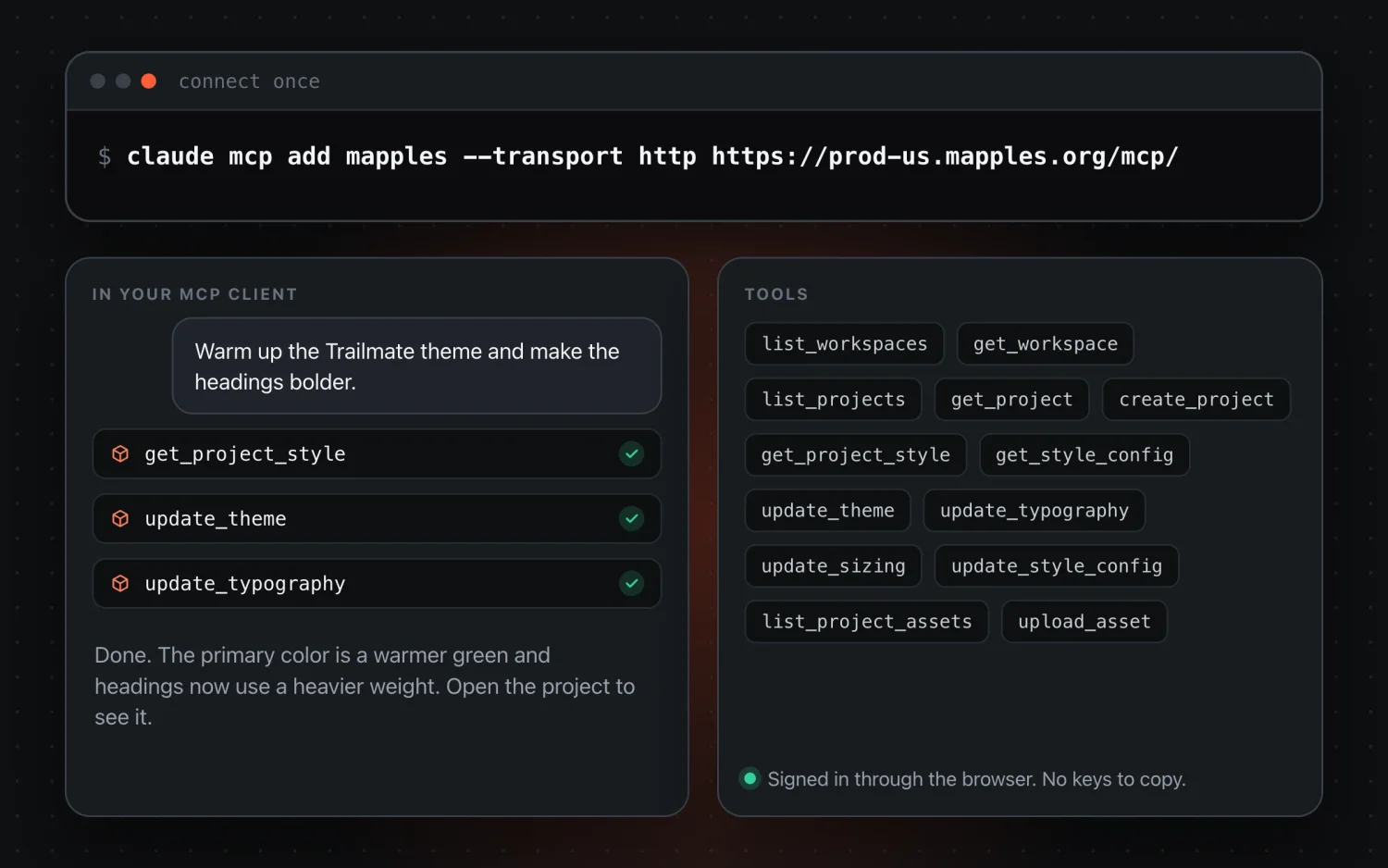
Connect Claude Code, claude.ai or any MCP client to your Mapples workspace. Sign in through the browser, then ask for what you need in plain language.
- List workspaces and projects, or create a new project.
- Read and update the theme, typography and sizing.
- List and upload project assets.
- OAuth sign-in: no keys to copy.